
Why Do You Need Google Analytics 4 (GA4)?
If you have a WordPress website—whether for business, a blog, a landing page, or eCommerce—Google Analytics 4 (GA4) is one of the most important tools to understand your website visitors.
With GA4, you can find out:
- How many visitors come to your website
- Where they come from (Google, Facebook, Ads, direct traffic)
- Which pages are visited the most
- How long visitors stay on your website
- Conversions and events (clicks, form submissions, purchases)
In this article, I’ll show you how to set up Google Analytics 4 (GA4) step by step, in a simple and beginner-friendly way.
Time needed: 10 minutes
How to set up Google Analytics 4 (GA4)
- Log in to Google Analytics
Log in to Google Analytics using your Google (Gmail) account.
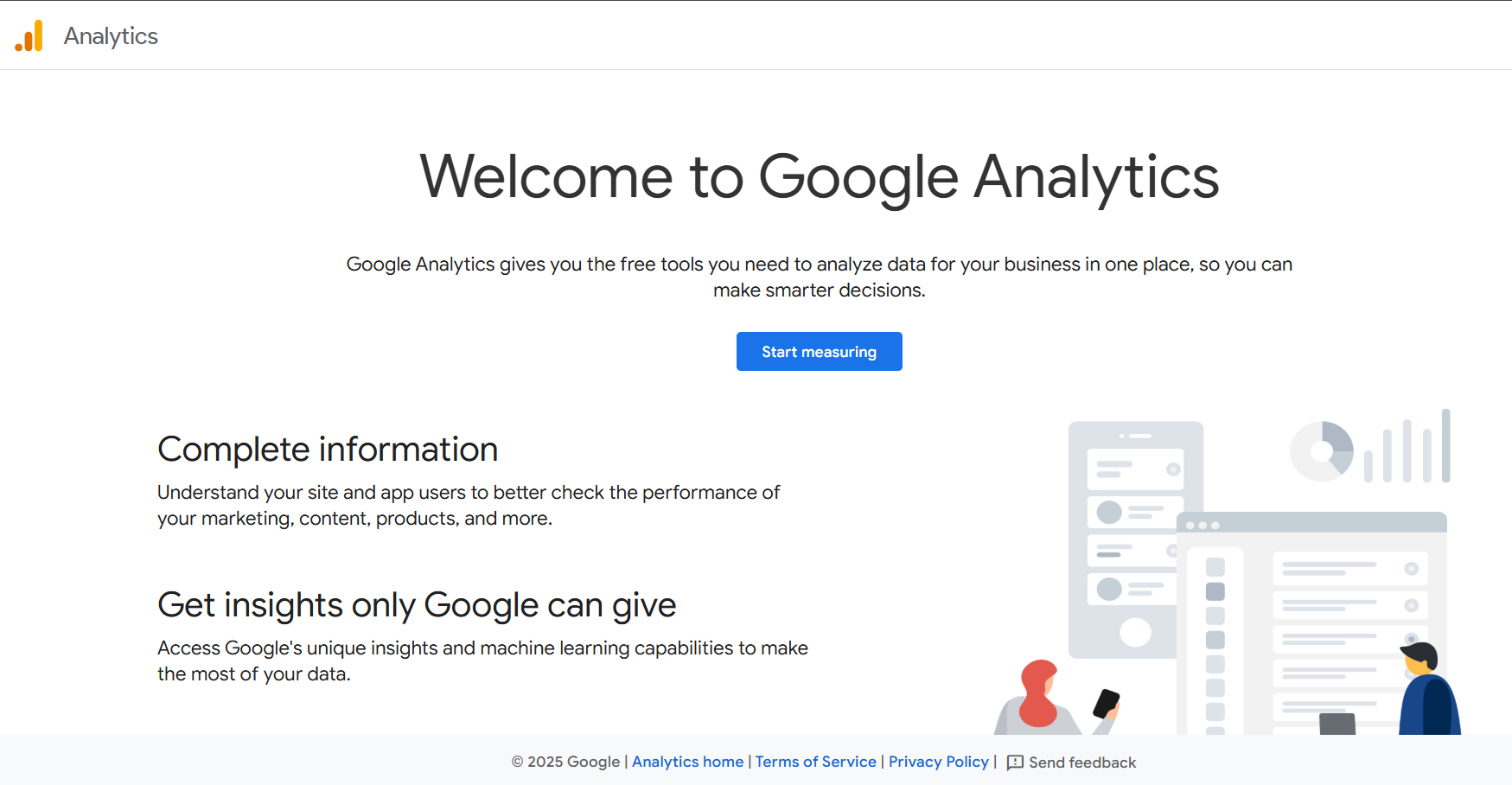
If this is your first time, click “Start Measuring” to begin setting up GA4.
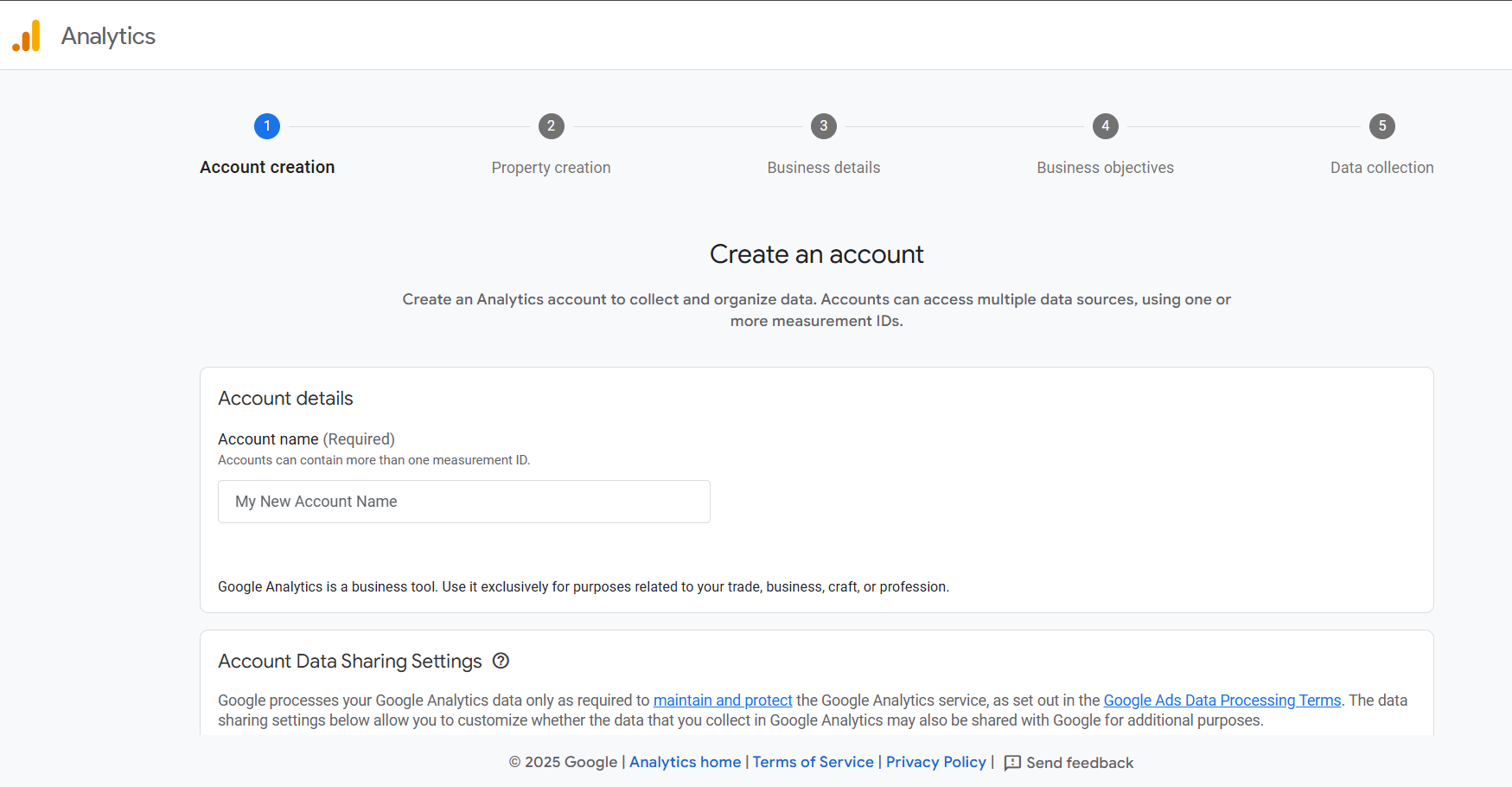
- Create a GA4 Account & Property
Enter your account name, website name, select Malaysia as the time zone, and MYR as the currency. Choose your business category and complete the GA4 property setup.
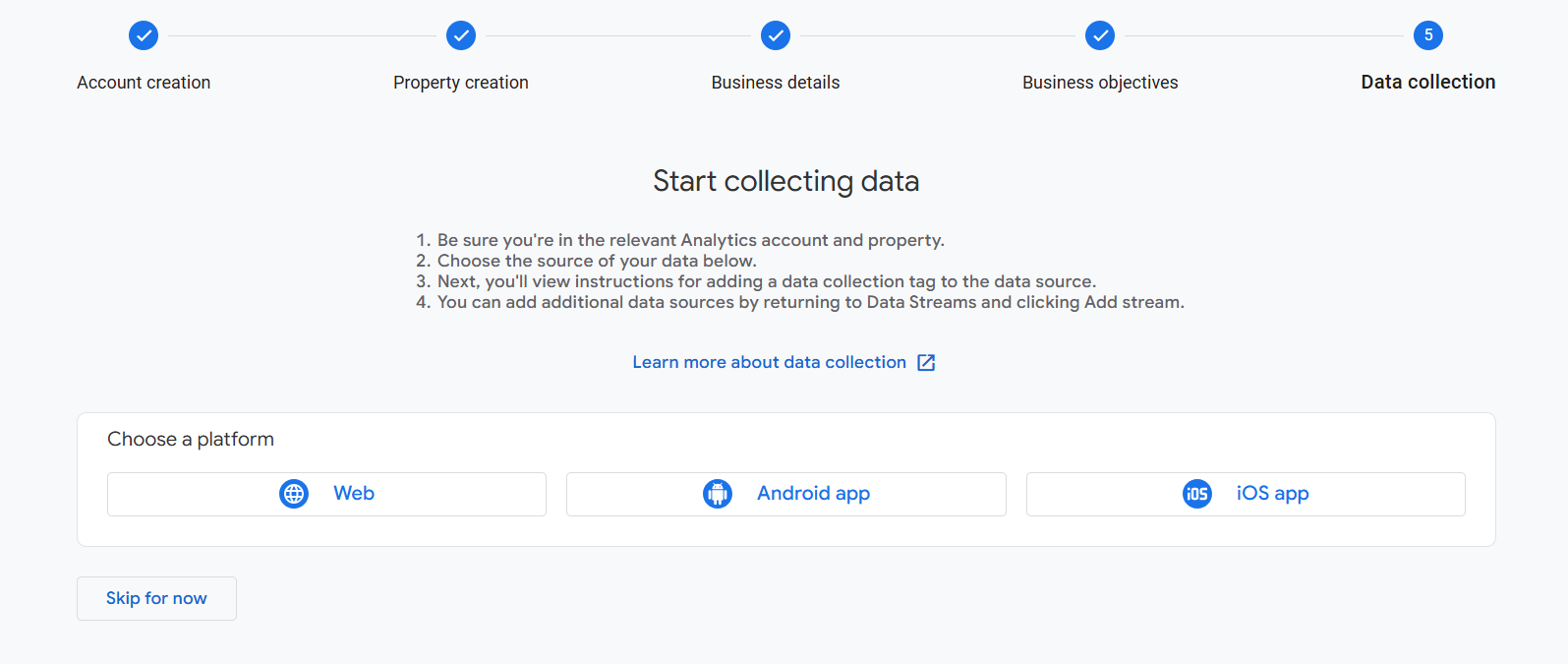
- Select the “Web” Platform
Choose “Web” as the platform, enter your website URL and stream name.
Make sure Enhanced Measurement is enabled before clicking “Create Stream.” - Copy the GA4 Tracking Code
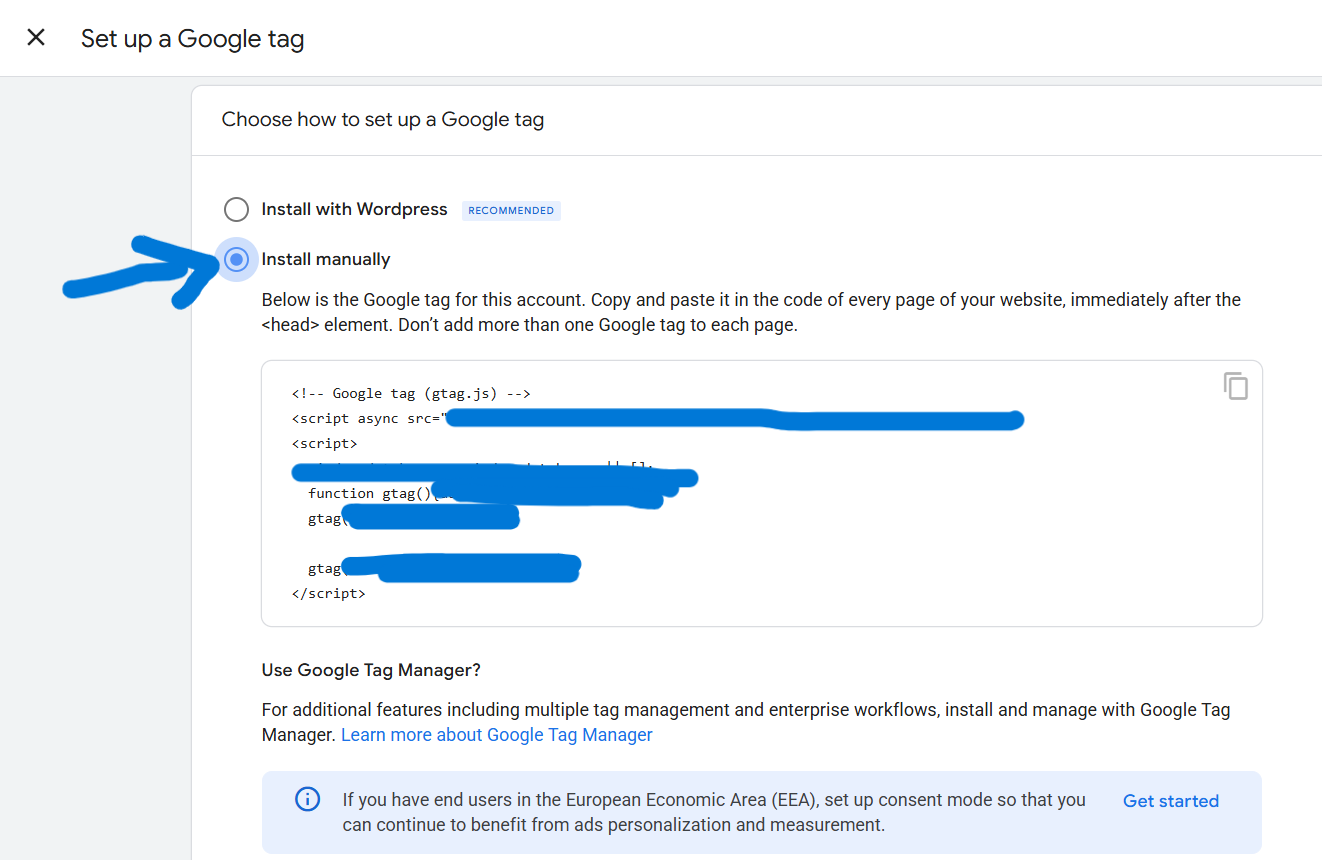
Select Install Manually (recommended method) and copy the full Google Analytics 4 (GA4) tracking code provided. Do not edit or modify the code.
- Log in to WordPress & Install WPCode Plugin
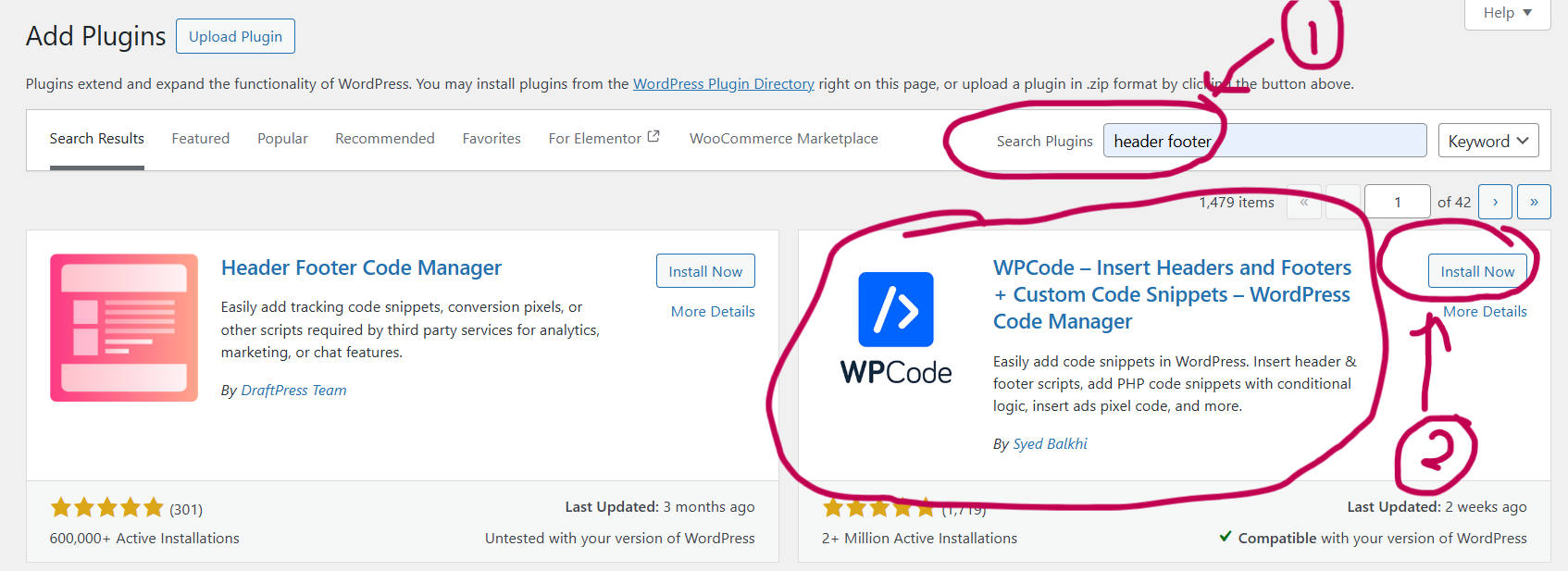
Log in to your WordPress Admin dashboard, go to Plugins, search header and footer and install the WPCode plugin to easily add the GA4 tracking code.
- Paste the GA4 Code into the Header Section
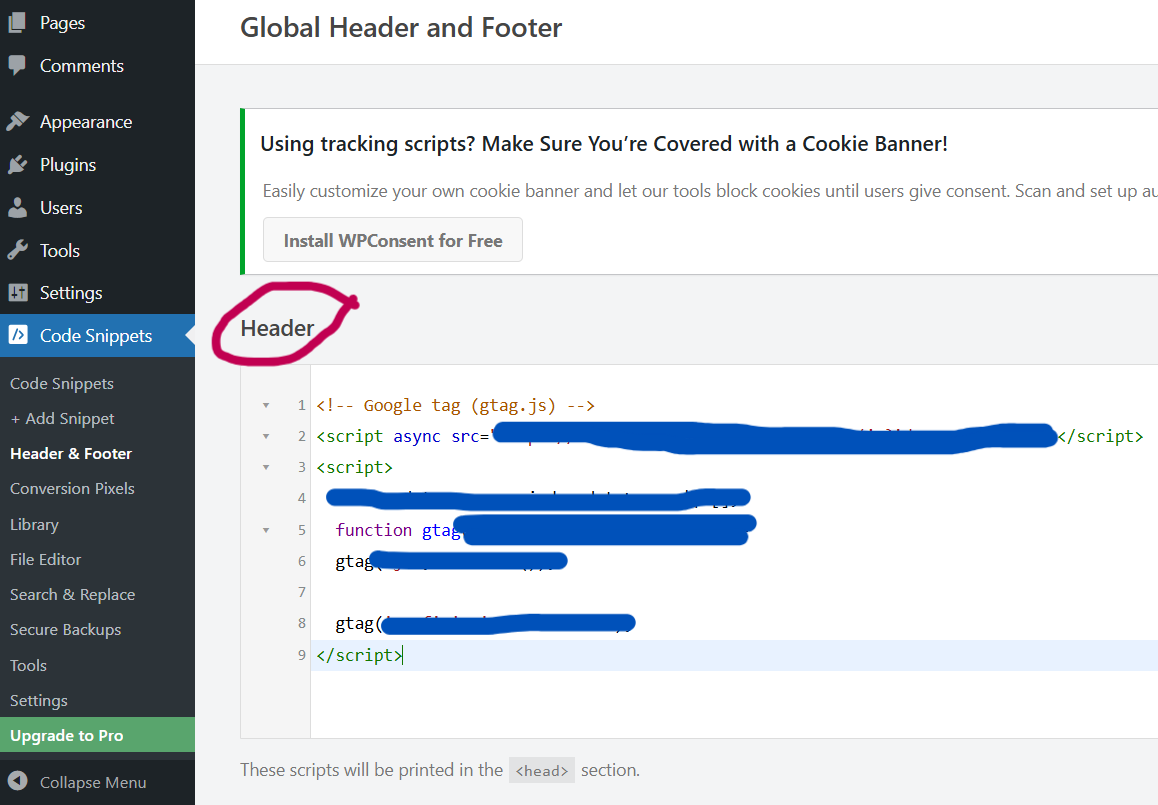
Go to WPCode → Insert Headers and Footers, paste the GA4 tracking code into the “Scripts in Header” section, then click Save.
- Test Data in GA4 (Real-Time)
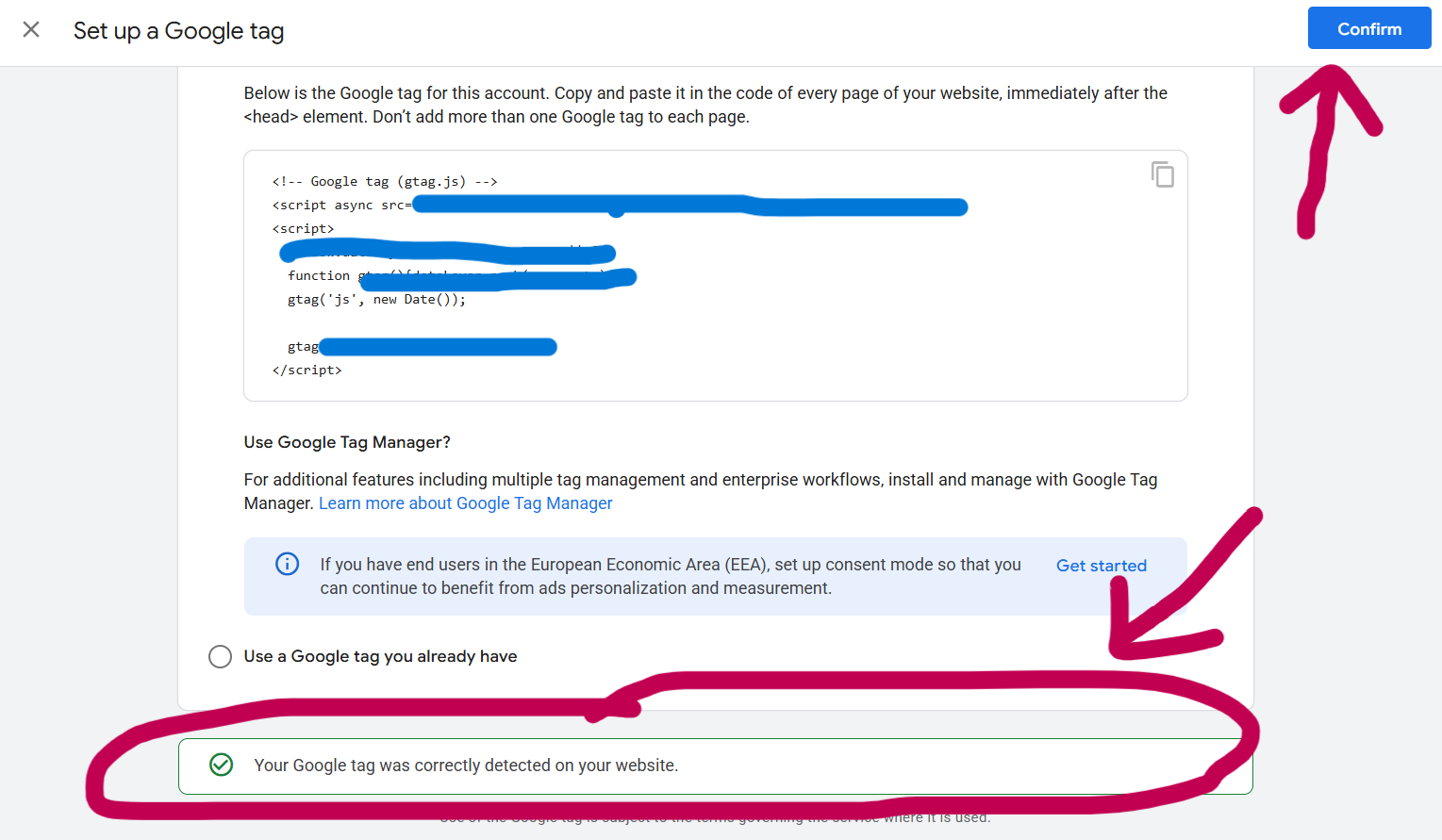
Go back to Google Analytics and click Test Installation.
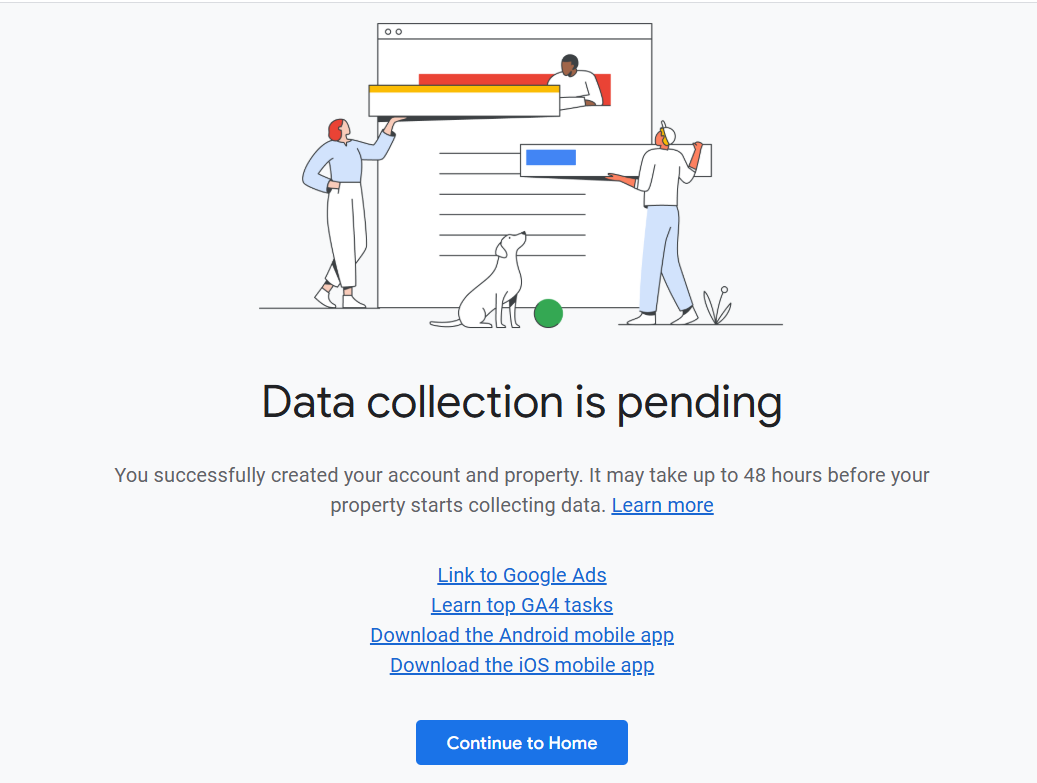
If the setup is successful, Google Analytics will inform you that it may take up to 48 hours for your data to be collected and displayed in the GA4 dashboard. - Done!
Google Analytics will inform you that it may take up to 48 hours for your data to be collected and displayed in the GA4 dashboard.

Leave a Reply