
WordPress SEO is one of the fastest ways for a Malaysian business to get more leads from Google. After all, WordPress already gives you a solid base. But a fresh install will not rank on its own. You still need the right settings, plugins, speed and content.
So in this guide, I’ll walk you through 10 practical steps. You can follow most of them in an afternoon, even if you are not a developer. Let’s get your website working harder for you.
What Is WordPress SEO?
WordPress SEO is the process of setting up and improving a WordPress website so it ranks higher on Google. It covers technical settings, on-page content, site speed and structured data.
Think of WordPress as a good car. It runs well out of the box. However, you still need to tune it, fill the tank and point it in the right direction. That tuning is what WordPress SEO is all about.
It is also a skill worth learning. According to W3Techs, WordPress powers 58.3% of all websites whose content management system it can identify. In other words, many of your competitors use the same platform. Your settings and content decide who wins.
Why WordPress SEO Matters for Malaysian Businesses
Malaysian customers search on Google before they call, visit or buy. They look for a lawyer in Shah Alam, a caterer in Johor Bahru or a clinic in Penang. If your site does not show up, they will simply pick someone else.
On top of that, search is changing fast. Google now shows AI Overviews, and many people also ask ChatGPT or Gemini for recommendations. These tools tend to quote pages that are clear, well structured and easy to crawl. Good WordPress SEO helps you here too.
Here’s the thing, though. Many small business websites share the same basic mistakes. For example, the site is hidden from Google, the URLs are messy, or the pages load slowly on mobile. The steps below fix exactly those problems.
Step 1: Make Sure Google Can See Your Site
First, check one tiny setting. Go to Settings, then Reading, and look for the box called “Discourage search engines from indexing this site”. If it is ticked, untick it and save.
Developers often tick this box while they build a new site. Then they forget to switch it off at launch. As a result, the whole website can stay invisible to Google for months.
Next, open your homepage in an incognito window and type “site:yourdomain.com.my” into Google. If no pages appear, something is blocking indexing. In that case, check this setting first.
Step 2: Set Clean Permalinks
Your URL structure is the next quick win. By default, some WordPress sites use links like “?p=123”. These tell neither Google nor your visitors what the page is about.
Instead, go to Settings, then Permalinks, and choose “Post name”. Now your URLs will look like “/seo-service-shah-alam/”. Google’s SEO Starter Guide also suggests using words in your URLs that are useful for users.
One warning, though. If your site is already live, changing permalinks will break old links. So set up 301 redirects first, or ask a developer to help.
Step 3: Install One Good WordPress SEO Plugin
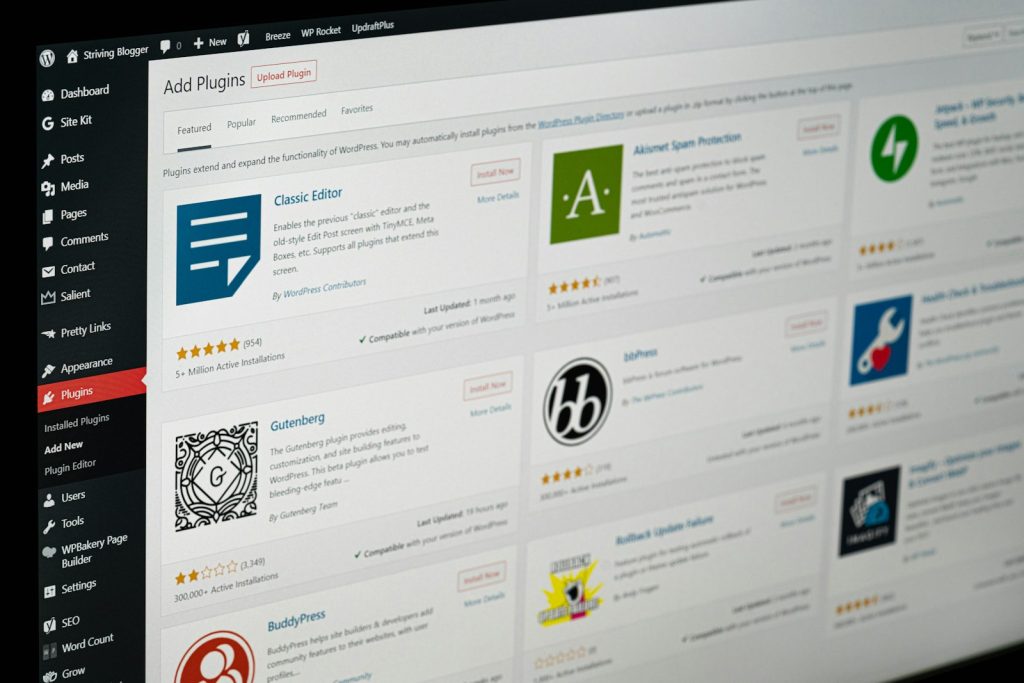
Next, you need an SEO plugin. Popular choices include Yoast SEO and Rank Math. Both let you edit titles, meta descriptions, sitemaps and schema without touching code.
Pick one and stick with it. Running two SEO plugins at once often creates duplicate tags and confusing signals. Moreover, it slows your site down.
Set Up the Basics in Your Plugin
Once the plugin is active, run its setup wizard. Then work through this short list:
- Add your business name, logo and social profiles.
- Set a clear title format, for example “Page Name
- Brand”.
- Turn on the XML sitemap feature.
- Hide thin archive pages, such as tag or date archives, from search results.
These few clicks give Google a much clearer picture of your business.
Step 4: Submit Your XML Sitemap
An XML sitemap is a list of the pages you want Google to find. WordPress has created one by default since version 5.5, as the WordPress core team announced in 2020. Your SEO plugin will usually replace it with a cleaner version.
Next, submit the sitemap in Google Search Console. Simply paste the sitemap URL into the Sitemaps report and click Submit. If you have not set up Search Console yet, follow our Google Search Console setup guide first.
After that, check the report every few weeks. It shows which pages Google has indexed and which ones have problems.
Step 5: Do Keyword Research for Each Page
Every important page should target one main keyword. For example, your service page might target “aircond service Klang”. Meanwhile, a blog post might target “how often to service aircond”.
Think about how Malaysians actually search, too. Some people type in English, while others use Bahasa Melayu or a mix of both. So check both versions before you choose.
Once you pick a keyword, place it in the page title, the first paragraph, one subheading and the URL. However, don’t stuff it everywhere. Write for people first, and let the keyword appear naturally.
Step 6: Optimise Titles and Meta Descriptions
Your title and meta description are your advert in the search results. A strong pair can win the click even when you rank below a competitor.
Here are a few simple rules:
- Keep titles under about 60 characters so they don’t get cut off.
- Put the main keyword near the start of the title.
- Write meta descriptions of around 120 to 155 characters.
- Add a clear benefit or a reason to click, such as “free quote” or “same-day service”.
Your SEO plugin shows a preview as you type. So use it, and rewrite until the snippet looks tempting.
Step 7: Speed Up Your WordPress Site
Speed matters for rankings and for sales. Google measures page experience with Core Web Vitals. According to Google Search Central, you should aim for these targets:
- Largest Contentful Paint (LCP) within 2.5 seconds.
- Interaction to Next Paint (INP) under 200 milliseconds.
- Cumulative Layout Shift (CLS) under 0.1.

Quick Speed Wins
Fortunately, most WordPress speed problems have simple fixes. Start with these:
- Choose hosting with servers close to Malaysia, such as in Malaysia or Singapore.
- Use a caching plugin.
- Compress images and serve them in WebP format.
- Remove plugins you no longer use.
- Pick a lightweight theme instead of a heavy multipurpose one.
For a full list, see our website speed optimisation checklist.
Step 8: Add Schema Markup
Schema markup is code that tells search engines exactly what your content is. For instance, it can say “this is a local business, open 9am to 6pm, in Petaling Jaya”.
Most SEO plugins add basic schema for you. Still, it pays to check that your business name, address and phone number match your Google Business Profile. Consistent details build trust with Google and with AI tools.
You can also add FAQ, Article or Product schema where it fits. Want to know which types are worth your time? Read our guide on schema markup for SEO.
Step 9: Create Helpful Content That Answers Real Questions
Technical settings get you in the game. Content, on the other hand, is what wins it. Google wants to rank pages that help people, not pages written only for search engines.

Write for Google, AI Search and People
So start with the questions your customers ask on WhatsApp or over the phone. Then answer each one clearly on your site. For example, a renovation contractor might write about permit rules, costs and timelines.
Also, structure each post well. Use H2 and H3 headings, short paragraphs and a direct answer near the top. This format is easy for readers to skim. Plus, it is easier for AI Overviews and chatbots to quote.
Finally, add descriptive alt text to every image. As Google’s SEO Starter Guide explains, alt text describes how the image relates to your content.
Step 10: Build Smart Internal Links
Internal links connect your pages together. They help Google discover new content and understand which pages matter most.
Here’s a simple habit. Every time you publish a blog post, link to one related service page and one related article. Use descriptive anchor text, such as “local SEO for clinics”, instead of “click here”.
In addition, keep your menu shallow. Visitors should reach any important page within about three clicks from the homepage.
Common WordPress SEO Mistakes to Avoid
Even careful site owners slip up. Here are common mistakes on Malaysian business websites:
- Using a nulled (pirated) theme or plugin, which can hide malware and spam links.
- Installing dozens of plugins that slow the site down.
- Publishing near-duplicate location pages with only the town name changed.
- Forgetting to renew SSL, which triggers browser warnings.
- Ignoring updates to WordPress core, themes and plugins.
Each of these problems can hold back your rankings. Fortunately, every one of them is easy to fix once you spot it.
How to Track Your WordPress SEO Results
SEO takes time, so you need a way to measure progress. Use Google Search Console to watch clicks, impressions and average position. Then use Google Analytics to see which visitors turn into enquiries.
Check your numbers once a month, not every day. Rankings move up and down all the time. What really matters is the overall trend over three to six months.
Want to see what real progress looks like? Browse our SEO case studies to see how Malaysian businesses grew their organic traffic.
Conclusion: Start With the Quick Wins
WordPress SEO does not have to feel overwhelming. Start with the fast fixes: indexing, permalinks, an SEO plugin and your sitemap. Then move on to speed, schema, content and internal links.
Do one step each week, and you will see your site become stronger month after month. More importantly, you will build an asset that brings in leads while you sleep.
Not sure where your website stands right now? Get a free SEO audit from Creative Site. We’ll show you exactly what is holding your WordPress site back. And if you would rather leave it to experts, our SEO service in Malaysia can handle everything for you.
Frequently Asked Questions
Is WordPress good for SEO?
Yes. WordPress is a strong choice for SEO because it is flexible, widely supported and easy to update. However, your theme, hosting, plugins and content still decide how well you rank.
Which is better for WordPress SEO, Yoast or Rank Math?
Both are good. Yoast SEO is simple and popular, while Rank Math offers many features in its free version. Choose the one your team finds easier, and use only one at a time.
How long does WordPress SEO take to show results?
Most sites see early movement within three to six months. Competitive keywords can take longer. Quick fixes, such as unblocking indexing, can help much sooner.
Do I need a developer for WordPress SEO?
Not always. You can handle most basic settings yourself. For speed tuning, migrations and advanced schema, though, an experienced WordPress SEO team saves time and avoids costly mistakes.
Does WordPress SEO help with AI search like ChatGPT and Google AI Overviews?
Yes, it helps. AI tools tend to pull from pages that are easy to crawl, clearly structured and trustworthy. The same steps in this guide make your content easier for them to understand.




[…] in your browser and check that your key pages appear. If you’re new to plugin settings, our WordPress SEO guide walks through the full […]